

If you regularly work with Excel and large datasets in Every day’s business activities, finding information/result from large datasets is one of the most common tasks. Learn how to use the Excel XLOOKUP function with practical examples. XLOOKUP is a function that saves a lot of time, is easy to use, and increases accuracy in your data. Understand the syntax, exact match, approximate match, custom error messages, and why XLOOKUP is more advanced than VLOOKUP.
What is XLOOKUP Function:
XLOOKUP is a Next generation Excel function introduced by Microsoft in 2020 to make searching data easier and more accurate with Less time.
- VLOOKUP can search only in one way Left to Right, But XLOOKUP can search both Left-to-Right and Right-to-Left.
- It also allows you to return custom messages if a value isn’t found and supports exact and approximate matching without additional tricks.
Excel XLOOKUP Formula
XLOOKUP Function has Syntax and Arguments
Syntax
=XLOOKUP(lookup_value, lookup_array, return_array, [if_not_found], [match_mode], [search_mode])
What are the XLOOKUP Arguments :
XLOOKUP Arguments are the key parameters and mandatory parameters to execute XLOOKUP Function in Excel spreadsheet.
- What is Lookup Value: The value you are searching for to find the corresponding result. In technical terms, it is the primary value used to retrieve the data you are looking for.
- What is Lookup Array: It is the column or range where Excel searches for the lookup value. The XLOOKUP function searches for the value specified in lookup_value within the lookup_array, as it serves as the primary/base reference.
- What is Return Array: It is the column or range containing the result or corresponding values you are looking for. In other words, this is where Excel retrieves the final result from.
Advantages of XLOOKUP over VLOOKUP & Other Lookup Functions
if_not_found : you can set Customized message if the corresponding does not exist. For eg: =XLOOKUP(B3,C3:C20,F3:20, “The value you are looking is not found”). This is optional that you can use or you can avoid.
match_mode : Another benefit that you can get using xlookup is Exact or approximate match. same like vlookup you can use 0 for Exact Match and 1 for Approximate match. This is also optional function that you can use.
search_mode : Another great advantage of XLOOKUP is “Search direction”. This is not mandatory and optional function you can use.
If you regularly work with Excel, finding information from large datasets is one of the most common tasks. Whether you’re searching for employee names, salaries, commissions, or product prices, Excel offers several lookup functions like VLOOKUP, HLOOKUP & XLOOKUP. Among them, XLOOKUP is the most powerful. easy to use and flexible.
In this blog post, you’ll learn how to use the XLOOKUP Function with simple, real-world examples. Even if you’re a beginner, you’ll understand what XLOOKUP is? How XLOOKUP works and how XLOOKUP Function can replace older functions like VLOOKUP and HLOOKUP.
By the end of this blog post, you’ll be able to retrieve corresponding details, calculate the values, return custom messages when data isn’t found, and perform both exact and approximate matches.
Now Let’s look into XLOOKUP Example:
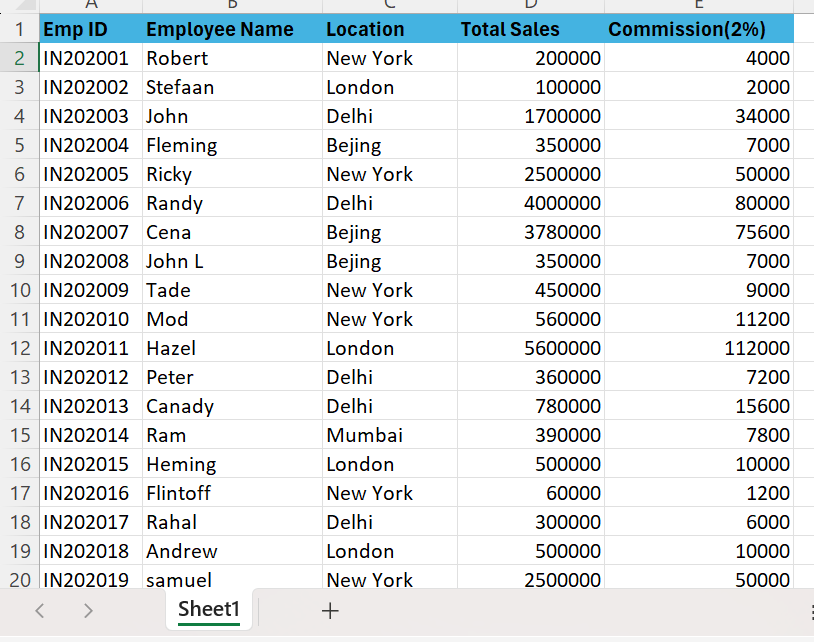
You can observe that below sheet has Emp ID, Name, Location, Total Sales, Commission 2 percent on Total sales.
Let’s find out Commission for Each Person
XLOOKUP FORMULA EXAMPLE:
=XLOOKUP(H2, B2:B20, E2:E20)
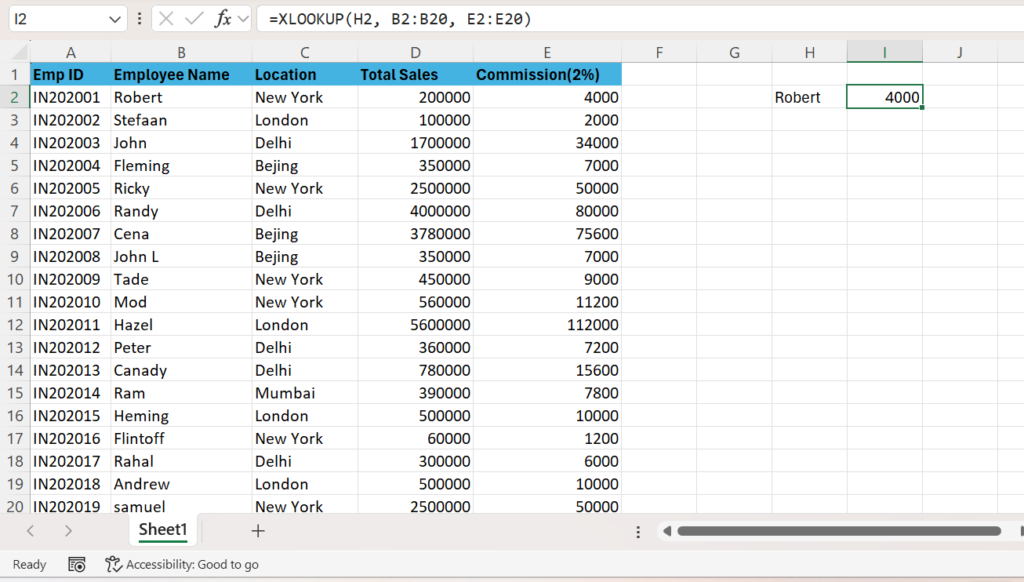
In the above screenshot you can observe that we got commission details of Robert equal to 4000 based on Name mentioned in H2 Column.
In the above case Robert is lookup_value, Column range B2: B20 is the lookup_array and Column E range E2:E20 is the return_array.
HOW TO APPLY CUSTOMIZED MESSAGE IN EXCEL XLOOKUP?
you can refer below formula = =XLOOKUP(H2,B2:B20,E2:E20,”The value you are looking for is not available”).
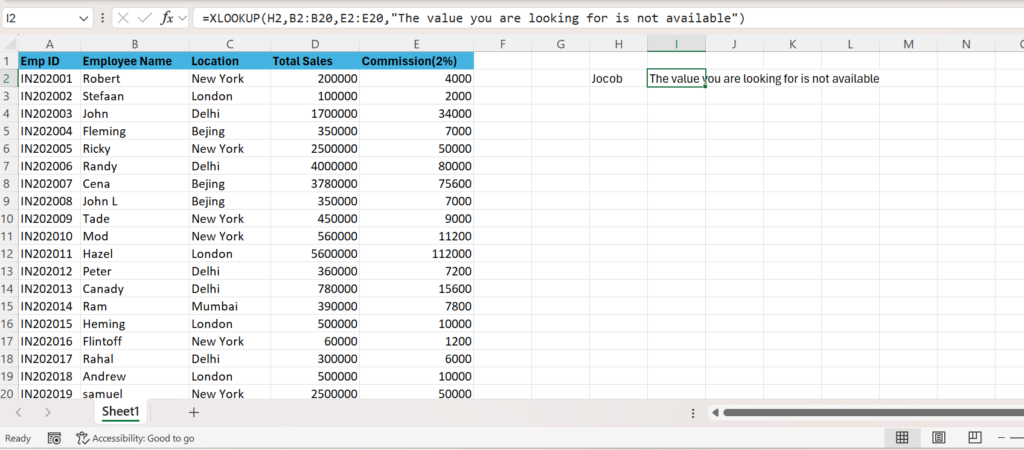
Jocob is the name that is not present in the above sales report. we have set customized message ” The value you are looking for is not available”. You can observe the message in I2 Column.
How to XLOOKUP Formula for other cells:
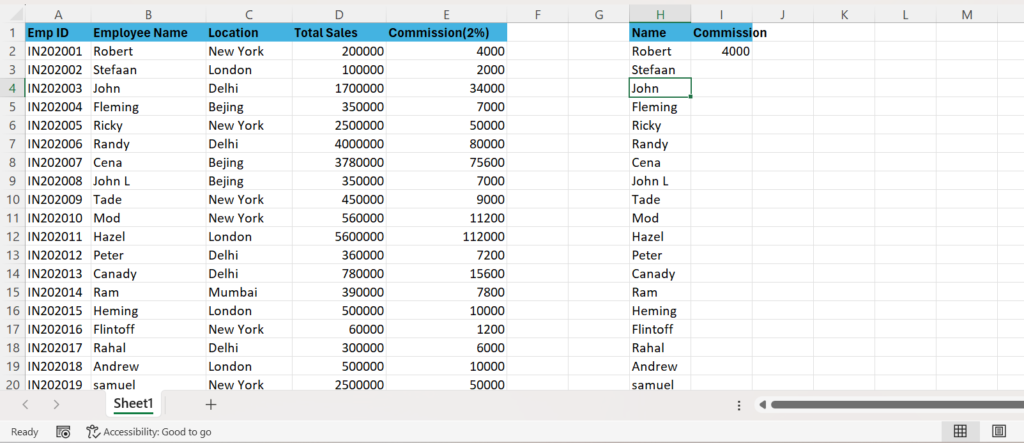
Copy names from column B and paste it in column H, Apply XLOOKUP Function in column Cell I2. Double click at the End of I2 cell, system will get automatically Copies XLOOKUP formula for all available cells.
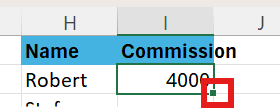
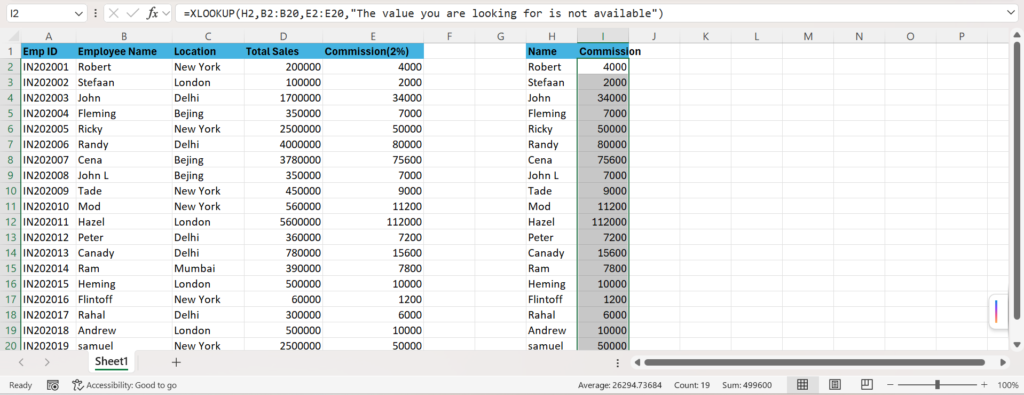
In the above screenshot, observe that each employee wise commission we can be able to get it by applying XLOOKUP Formula.
XLOOKUP Exact Match example:
By default, XLOOKUP performs an exact match.
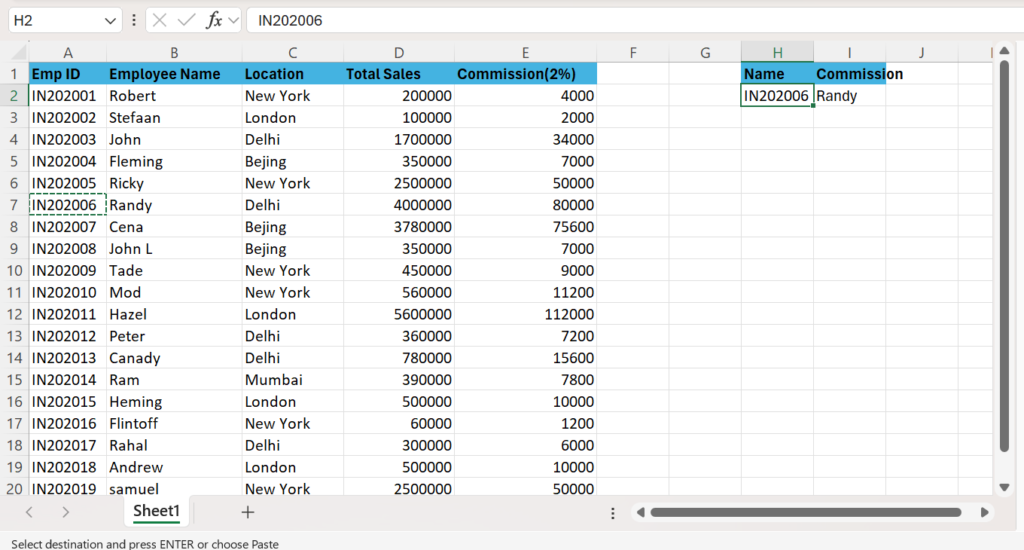
=XLOOKUP(H2,A:A,B:B)
We are looking for Name by using the EMP ID, you can observe Input as EMP ID IN202006
Output: Randy
Excel returns the exact matching employee.
XLOOKUP Approximate Match Example
Sometimes your lookup value may not exist exactly, in that case Approximate Match Function will be useful.
We will Student Grade system using xlookup approximate match.
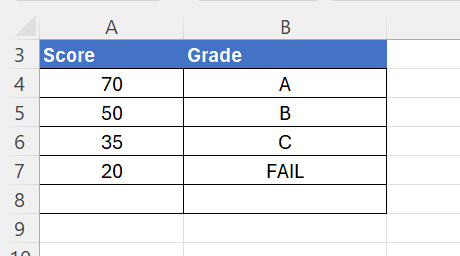
We have student Grade system as below
Find student Marks list and Grades against students by using XLOOKUP APPROXIMATE Funtion.
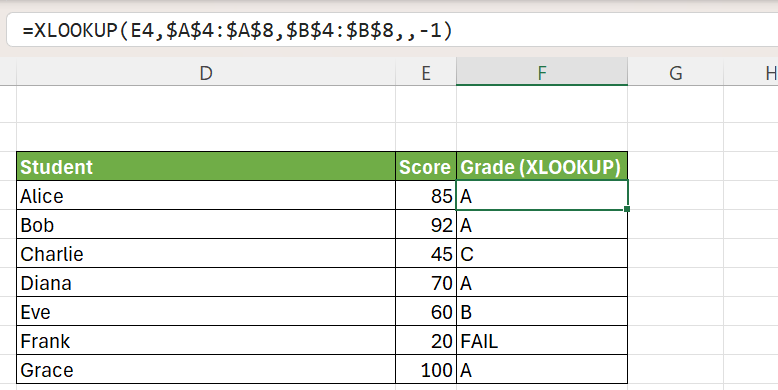
For an example Alice has scored 85 marks, as we shown in table one Person with 70 marks should be in Grade ‘A’. So here we applied formula
=XLOOKUP(E4,$A$4:$A$8,$B$4:$B$8,,-1)
Formula Explained as below:
- Parameter Meaning E4 : lookup_value : The score to search for
- $A$4:$A$8 lookup_array : The score thresholds to search in
- $B$4:$B$8 return_array : The grades to return (empty)
- if_not_found : Default error if no match
- -1 match_mode :Find largest value ≤ lookup_value
How Approximate value works:
For Example, Alice Score = 85
Formula Checks: Is 85 ≥ 70? Yes
Then it Returns to Grade: A
Finds the LARGEST threshold ≤ your score
Approximate matching is especially useful for:
- Tax slabs
- Bonus calculations
- Grade systems
- Commission structures
- Discount tables
XLOOKUP VS VLOOKUP Which is better?
VLOOKUP is old traditional version. However, XLOOKUP has more advantages over VLOOKUP and has no limitations.
In Excel VLOOKUP Search Left is not possible only left to right is possible but in xlookup can search to the right to left also.
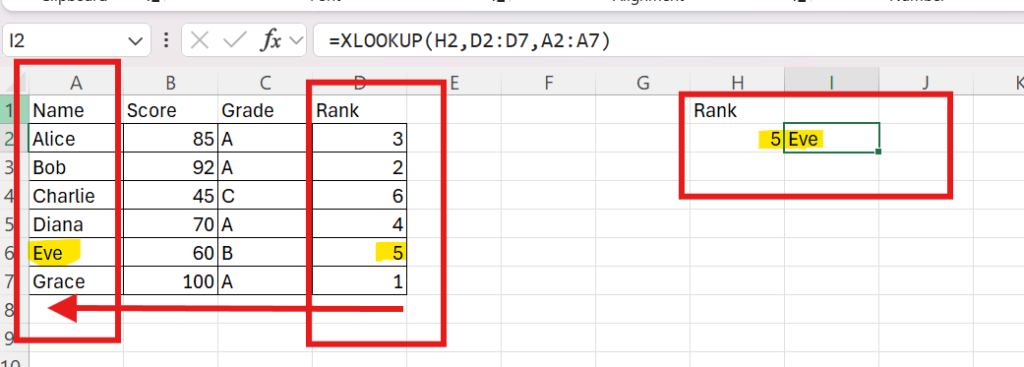
you can check above image that XLOOKUP formula Right to Left we applied. You can see the table containing Ranks against Each student in Table.
You can observe highlighted text that by applying XLOOKUP Formula Right to Left we got the Rank 5 student name = Eve.
- In we VLOOKUP we have to mention TRUE/ FALSE or 1/0 for Exact/Approximate match respectively but in you XLOOKUP you can get Exact Match by Default.
- In VLOOKUP we don’t have option for Custom Error Message but in XLOOKUP you can whatever error message you want.
= XLOOKUP (H2, A2:A10, E2:E10, Value not found) Here ‘Value not found’ is customized message. you can set whatever message you want in XLOOKUP Formula.
- In VLOOKUP You must provide the column index number. In XLOOKUP, no need to Enter column Index number, you directly reference the return column.
- XLOOKUP is Cleaner and easier to understand but VLOOKUP can be harder to Understand & complex formula.
Because of these advantages, Microsoft recommends using XLOOKUP whenever it is available
XLOOKUP Errors & Common Reasons
- Always use exact match unless approximate matching is required.
- Use meaningful table headers.
- Convert your data into Excel Tables for easier formula management.
- Combine XLOOKUP with IF, SUM, FILTER, and SORT functions for advanced reporting.
Frequently Asked Questions (FAQs)
Is XLOOKUP better than VLOOKUP?
Yes. XLOOKUP is more flexible, supports left and right lookups, performs exact matching by default, and allows custom error messages.
Does XLOOKUP work in all Excel versions?
No. XLOOKUP is available in Microsoft 365, Excel 2021, Excel 2024, and later versions. Older versions like Excel 2019 and Excel 2016 do not support it.
Can XLOOKUP return multiple values?
Yes. XLOOKUP can return multiple columns if the return array includes more than one column.
Can XLOOKUP replace HLOOKUP?
Yes. XLOOKUP can replace both VLOOKUP and HLOOKUP, making it a more versatile lookup function.
Which XLOOKUP match type should I use?
For most business scenarios, use the default exact match. Use approximate match only for grading systems, tax brackets, commission slabs, or discount tables.
