
MID Function in Excel is one of the Powerful and most useful function in excel, which save a lot of time to complete the work. Especially when client gives the master data preparation in Real time projects or to extract specific letters/numbers from long texts or To Replace the specific characters or letters in Existing Text/Code. Using MID Function, we can Extract or Edit or Replace the Mid portion of Text or Code.
What is MID Function?
The MID function is a foundational text function that predates many modern Excel features. Along with LEFT, RIGHT, and LEN, it has been part of Excel’s core text manipulation toolkit for nearly 40 years! Using MID Function, we can Extract or Edit or Replace the Mid portion of Text or Code.
It was introduced in Excel 1.0 in 1985 also available in All Excel versions (Excel 2003, 2007, 2010, 2013, 2016, 2019, 2021, Microsoft 365).
MID Function Syntax in Excel
=MID(text, start_num, num_chars)
| Argument | Description | Required |
| text | The original text string (cell reference or text in quotes) | Yes |
| start_num | The position of the first character to extract (1 = first character) | Yes |
| num_chars | The number of characters to extract | Yes |
Key Points About MID Function Arguments:
- All three arguments are required
- The start_num begins at 1 (not 0)
- The output might be combination of Text or Number or combination of Both
MID Formula Example:
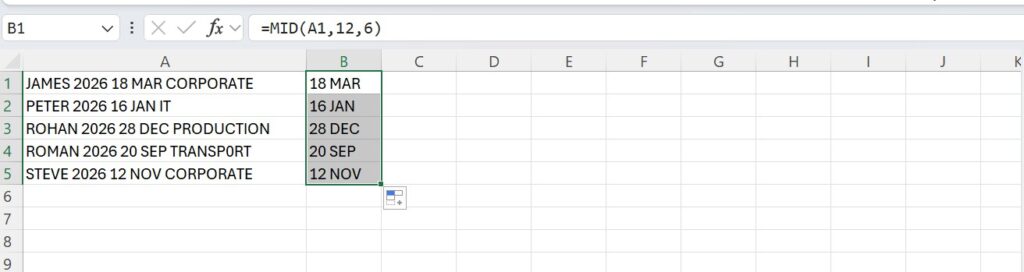
In the below example we have raw data of employees, Including Name, Year, Date, Month and Department wise. we will see now how to Extract Data both Numbers and Text using MID Function.
In the Column A1 We have Raw Data, In Column B1 We Entered MID Formula = MID (A1,12,6) ( A1= Considers text in A1 Cell, 12 = Starting of Text from letter 12, 6 = Extracts the next 6 letters from 12th letter).
In the below example we extracted years which is in number format. Formula = MID (A2,7,4)
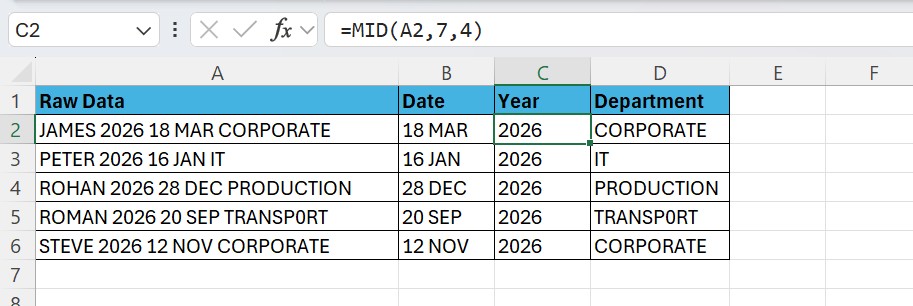
Also observe the column D which contains the department wise data extracted using the MID Function.
MID Function in Real time Project Example
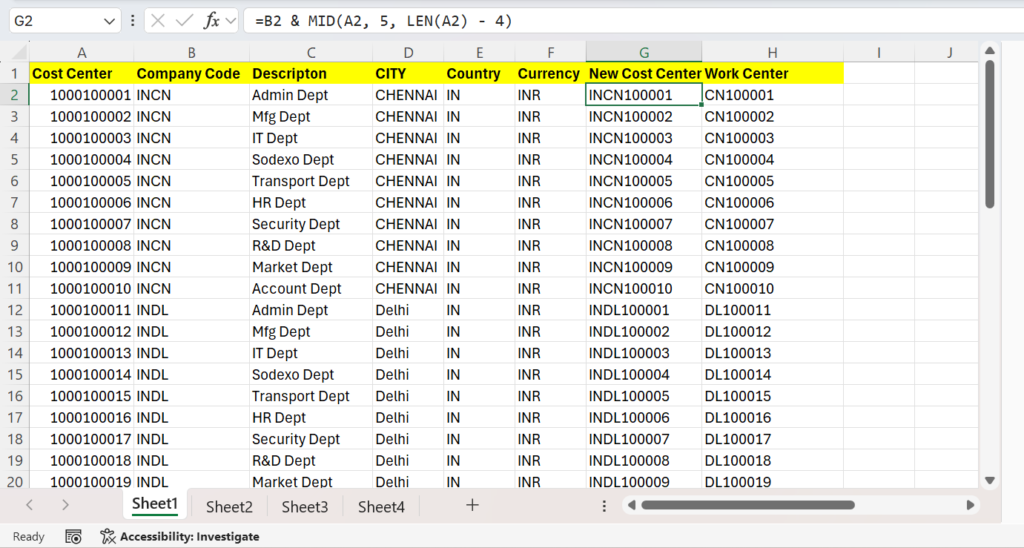
In the below screen we can see that how MID Function is useful in Excel Real time Projects, I have taken the example of Cost Center Master Data Preparation.
In Column A Old Cost Centers Number are available, we need to create new cost centers based on company code. we need replace first four letters of old cost centers in column ‘A’ and Create New cost centers in column G and Also created Work center Name Based on the cost centers in column H.
Formula used here is = B2 & MID(A2, 5, LEN(A2) – 4) Which system considers company code name in B2, Replaces first four letters of A2 and Give New Cost Center in Column ‘G’.
MID Formula Explanation
B2
- Refers to the value in cell B2.
- This will be the first part of your combined result.
& is used to Join the Text
- Used to join (concatenate) text or values together.
- It merges the content of
B2with whatever comes next.
MID (A2,5, LEN(A2) -4)
- MID extracts a portion of text from cell A2.
- 5 means start from the 5th character of A2.
- LEN (A2) – 4 calculates how many characters to extract.
- LEN (A2) gives the total length of text in A2.
- Subtracting 4 means you’re taking everything from the 5th character to the end.
MID Function Replacement
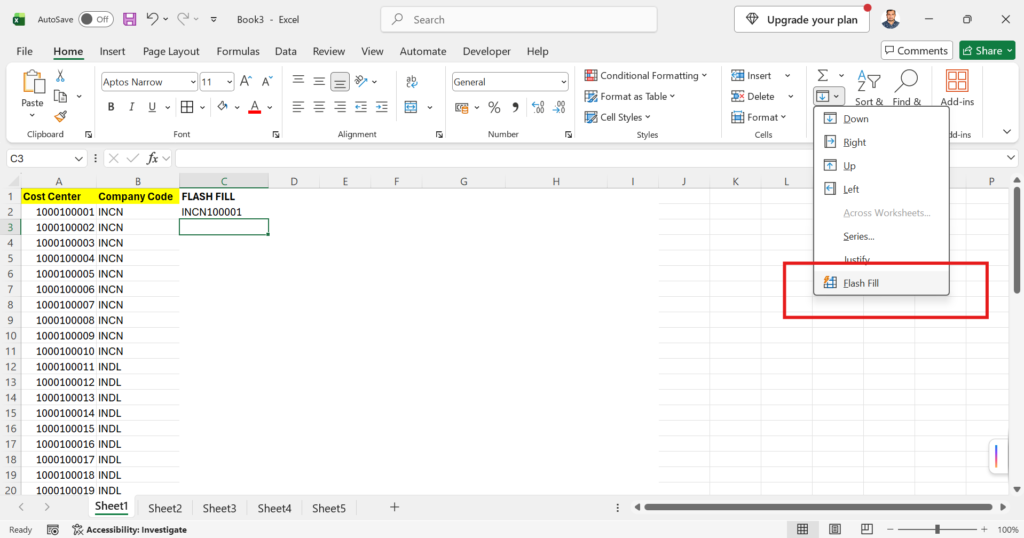
You can Use Flash Fill or CTRL+E to replace the MID Function or Some time you can replace by using Excel Replace Function.
Excel XLOOKUP Function: Everything VLOOKUP Can’t Do
EXCEL FLASH FILL
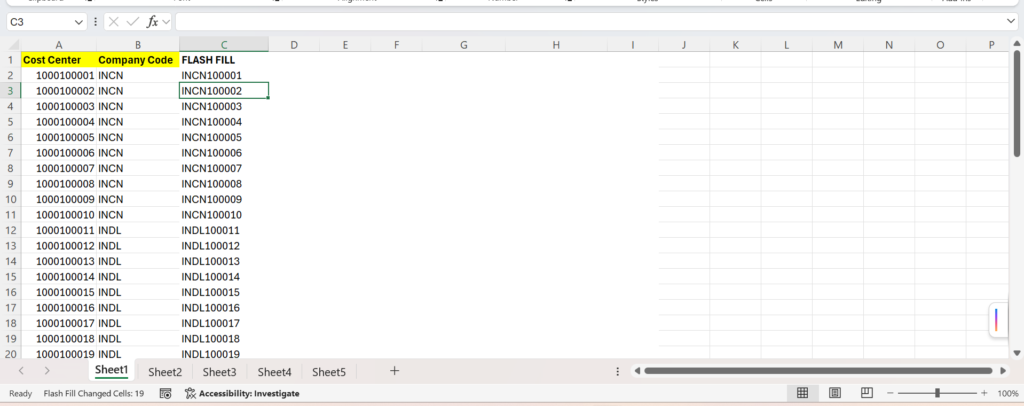
Check below image how Excel Flash Fill function replaces the MID Function in Excel. In Excel you can do same work by applying different formulas. In the ‘C’ Column of the below Example, we have combined the values from Column ‘B’ & A. In the Cell ‘C3’ Simply press the short cut key ‘CTRL + E ‘ or go to Excel Menu Bar and select Flash Fill button as shown in the screenshot. Your work will get completed in Minutes.
Check Result in Below Image
Excel Replace Function
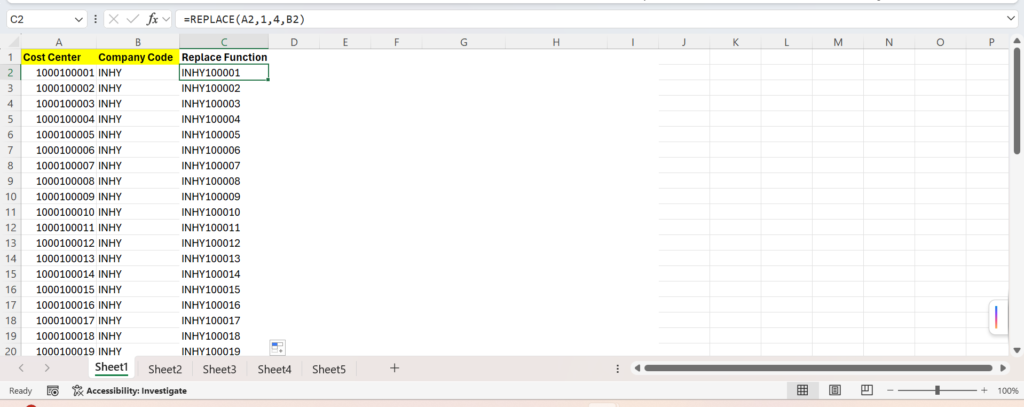
Whenever you need to replace the specific characters of the given text string, Excel Replace Function is useful. Replace Function is alternative to MID Function in Excel. In below example we can check how we achieved the results using Replace Function same as MID Function.
Replace Function Syntax
The REPLACE function replaces part of a text string with different text, based on the position you specify.
=REPLACE(old_text, start_num, num_chars, new_text)
Parameters
| Parameter | Description |
|---|---|
| old_text | The original text you want to modify |
| start_num | The position (starting from 1) where the replacement begins |
| num_chars | The number of characters to replace |
| new_text | The text that will replace the old characters |
Example for Replace Formula in Excel
we have Derived Cost Center Number in Column ‘C’ by using Replace function. you can find the formula in the given box.
=REPLACE(A2, 1, 4, B2)
- Starts at position 1 in A2 CELL
- Replaces 4 characters (“1000”) of A2
- With the Company Code in B2 (“INHY”)